AI-DESIGN-SKILLS folder with Markdown workflows and ready-to-use skills.
INSIDE THE STUDIO
Four guided workflows, two ready-to-use skills, and an organized project folder. Your Core Brand and medium-specific skills are created for your brand.
Core Brand Skill Builder
A guided interview turns your brand idea, existing assets, taste, and optional references into a Core Brand Skill. Approve the direction before it becomes your brand’s reusable design principles.
Logo + Brand Kit Workflow
Explore distinct logo concepts, refine a direction, and approve the identity. Organize the master and exports, then create an editable Markdown Brand Kit and a designed, visually checked PDF.
Brand-Specific Skill Builder
Create brand-specific skills for websites and product UI, social campaigns, presentations, motion, print, packaging, and more. Each skill supplements Core Brand without forcing every output into the same layout.
Skill Refinement Workflow
Turn honest feedback on real work into better instructions. Diagnose the cause, review the smallest reusable improvement, and approve the change before the skill is updated.
Vector Design Skill
Create concept-led, editable SVG logos, icons, mascots, and illustrations. Plan silhouette, proportion, geometry, and negative space, then render and visually inspect the saved artwork before delivery.
No-Slop Skill
Challenge generic AI-design defaults: unnecessary cards, predictable layouts, decorative gradients, meaningless icons, and repetitive patterns. It encourages intentional decisions without defining your brand’s style.
Your brand lives in the folder
brand/ holds your brief, Core Brand Skill, and approved Brand Kit. assets/ keeps official logos and brand material; references/ keeps inspiration separate from approved work. skills/ stores reusable instructions, prompts/ holds the workflows, and output/ keeps generated work. Start a separate studio folder for each brand so its direction stays distinct.
THE MOST IMPORTANT PART
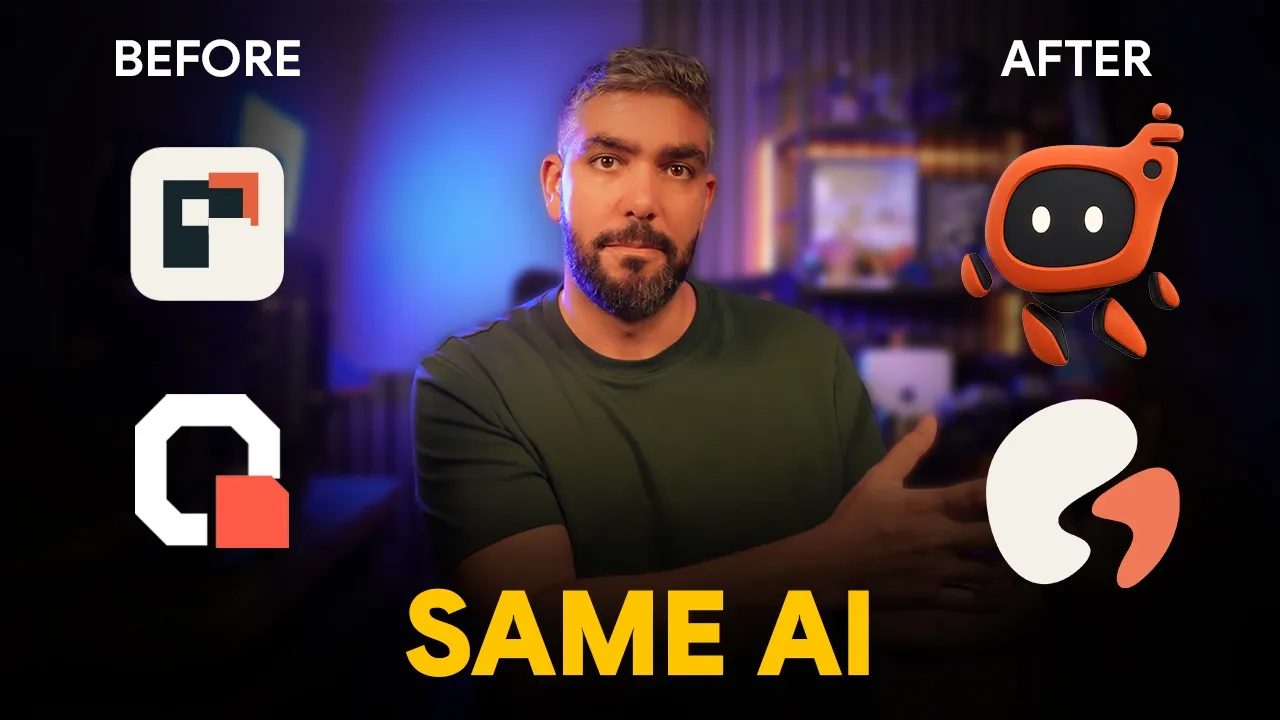
Every new skill starts as a v1. Test it on real work and give your AI honest feedback in plain English. In the video, a weak logo becomes a stronger, concept-led identity through repeated critique, optional inspiration, and approved skill updates.
The refiner identifies the problem and likely cause, proposes the smallest useful change, and explains why it should improve future work. You approve the update before the skill changes. Then test it again—not just on the original design.
Use references to communicate principles, not designs to copy. The goal is different outputs that share a creative point of view, not identical layouts, or a growing rulebook for every isolated mistake.
PORTABLE INSTRUCTIONS · PROJECT-BASED WORKFLOW
The full studio workflow needs an AI tool that can read and write your project folder. Keep AGENTS.md at the root and ask the AI to read it alongside START-HERE.md. The project instructions guide it to inspect what exists and recommend the next missing foundation.
Without project-folder access, attach or paste the relevant Markdown files and follow the workflows manually. You may need to save updated skills and assets yourself. On platforms with native skill support, use their installation method for the folders containing SKILL.md.
File access, skill installation, SVG rendering, PDF generation, and editable-output support vary by platform. Request the source format you need and review the saved results; instructions alone do not guarantee production-ready work.
design review
Take your design to a whole new level with professional UI/UX.
Submit your project and Jad will help you upgrade it.
Submit your design
Code review
Luckily we have Taz on the team, he’s a software engineer who can review your code, so you know it is production ready before you launch.
Submit your code